- Activation of new users can be done automatically (user clicks verification link in their confirmation email) or manually (via the backend)
- Automatic Activation
- To automatically activate, a users must click the link contained in an invite email
- Invites can be sent in 3 multiple ways
- During frontend user creation - see notes on “Adding Users” and make sure to toggle option “Email this user with the activation instructions”
- Via the user account page on the front end - click “Send Invite”
.png?width=670&height=136&name=image%20(1).png)
- Via the backend
- Locate the user by searching the user page
- Click on the correct user
- In the upper right corner click actions and select “Send Invite”
.png?width=249&height=268&name=image%20(2).png)
- Manual Activation
- DO NOT USE WITHOUT APPROVAL FROM A MANAGER
- Manual activation bypasses the terms and conditions that every users need to acknowledge
- Locate the user by searching the user page
- Click "Actions"
- Select "Activate"
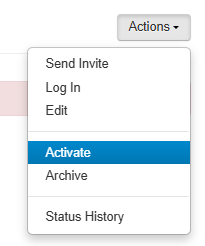
- Please Note: Unless the user is supervisor, you cannot manual activate unless there is an active supervisor assigned
- If you manually activate, it’s likely they didn’t receive or were unable to automatically activate their account
- Send them the password reset link so they can set a password and access the site
- DO NOT USE WITHOUT APPROVAL FROM A MANAGER