- Users can be loaded via .csv file on the backend
- If a customer is requesting addition of more than 5 users, this feature is the most efficient tool, if less than 5 manual creation (see Adding Users) is the best use of time
- Start by downloading a clean copy of the template
- Use an existing data request form to fill in the template
- If no form exists, send a new one to customer or request a spreadsheet of locations they would like added
- Fill in all fields required fields
- First name
- Last Name
- Title
- Not required
- Phone
- Format should be (xxx)xxx-xxxx
- Mobile Phone
- Format should be (xxx)xxx-xxxx
- Not Required
- Is Supervisor
- Y or N for his field
- This indicates not that the users is traditional supervisor, but instead grants Super Approver status to the uploaded user
- Assigned Locations
- Assign active locations owned by the customer via the location ID number from the backend
- Not required
- Default Location
- Sets an assigned location as default
- Not required
- Assigned Payment Methods
- Add customer registered payment methods via the payment method id
- The best source of these ids is via the specific customer page
- Click "Pmt Systems & Methods" for a full, downloadable listing of the ids and names
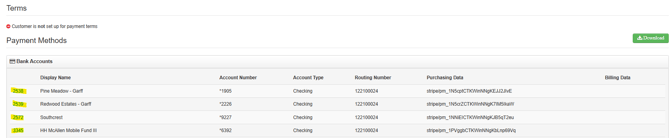
- Add customer registered payment methods via the payment method id
- Manage Company Settings
- Y or N field
- Grants admin privileges to any user with a Y
- Access Company Reporting
- Y or N field
- Users opted in will be able to review all orders and access reporting feature
- Non Corporate Catalog Purchases
- Y or N field
- Toggling this on will require supervisor approval for any item not added to corporate catalog regardless of spend limit
- Notifications on Purchases
- Y or N field
- Toggling this on will send the assigned supervisor an email regardless if approval is needed
- Send User Invite
- Y or N field
- Toggling this on will automatically send the user an invite to verify their email and log in
- See User Activation and Legacy Onboarding for more details
- Assigned Supervisor
- User id from backend of desired supervisor can be added here
- In order to function the assigned supervisor must exist in the system and be activated
- Due to this requirement it may be necessary to do multiple users uploads for a single customer starting at the top and moving down
- Upload all users at the top of the approval chain to generate ids to use for each step down the chain
- Due to this requirement it may be necessary to do multiple users uploads for a single customer starting at the top and moving down
- In order to function the assigned supervisor must exist in the system and be activated
- User id from backend of desired supervisor can be added here
-
- Spending Limit
- Set users spend limit
- Not required
- Restrict Purchases
- Y or N field
- If a spending limit is employed, this must be marked Y
- User Role
- Use the drop down menu to select the best match based on title or spend limit
- Orders Oversight
- Y or N Field
- All supervisors need this field toggled to Y
- Spending Limit
- Once complete, download a copy of the sheet as a .csv file
- Proceed to the correct customer page
- Click "Users"
- Click "Import members" in the upper right corner
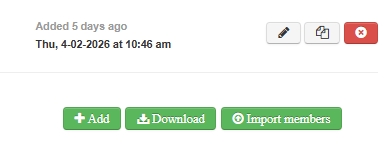
- Select your recently completed .csv file after clicking "Choose File"
- Click "Upload"
- A green bar will appear with a link to check progress

- Click the link and you will be taken to status screen similar to this
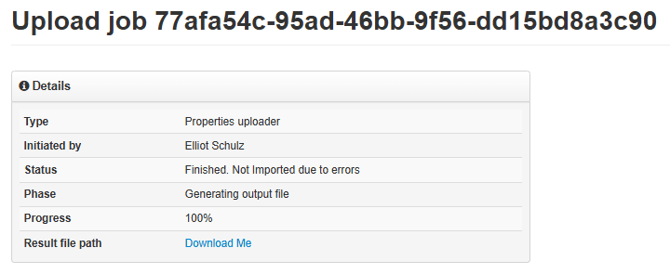
- If the status shows "Not Imported due to errors" click "Download me" by "Result file path"
- The resulting excel sheet will show any errors on the upload
- Typical errors for uploads include missing fields, improper formatting, or non-active supervisors
- If any assigned, location, payment method, or supervisor is not assigned to the customer you are uploading to, it will fail
- After correcting the errors, retry the download as many times as needed to clear the errors
- If you are still unsuccessful in downloading, slack #product-updates with the issue(s) along with steps you have taken to resolve
- The resulting excel sheet will show any errors on the upload
- Once you get a screen confirming upload, return to the customer page and confirm locations were added as desired
- Spot check entries to confirm that all desired options and supervisor assignments are correct