- Location can be loaded via .csv file on the backend
- If a customer is requesting addition of more than 5 locations, this feature is the most efficient tool, if less than 5 manual creation (see Adding Locations) is the best use of time
- Start by downloading a clean copy of the template
- Use an existing data request form to fill in the template
- If no form exists, send a new one to customer or request a spreadsheet of locations they would like added
- Fill in all fields required fields *
- Title*
- Name of location that will displayed and searchable on front or back ends
- Region
- Not required
- Customers can add an identifier to differentiate between regions for reporting purposes
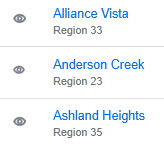
- Common naming conventions are geographical (Midwest, South, etc.) or the name of a regional manager
- Address*
- Primary address field
- Where possible replace street names with abbreviations for easier verification
- Ex. Instead of "123 Main Street" use "123 Main St"
- Address 2
- Not required
- Secondary address field
- City*
- State*
- Zip Code*
- If the zip code begins with 0 be aware your selected program (excel or sheets) might try and delete
- Add a single ' in front of the zero to prevent this
- If the zip code begins with 0 be aware your selected program (excel or sheets) might try and delete
- Phone
- Format should be (xxx)xxx-xxxx
- Number of units
- Not required
- Useful for tracking purposes
- Skip Verification
- Add “Y” or "N" depending on if you want to bypass verification
- HIGHLY SUGGESTED you use verfication
- Not verifying will prevent auto geocoding which is critical for some vendors to function.
- If you skip on upload, you will have to geocode manually after the fact
- Exempt From Membership Fees
- Add “Y” or "N" depending on if you want to bypass verification
- Doing this exempts on the property level not the customer
- If a customer is already exempt from membership fees, exempting properties becomes redundant
- Assigned Members
- Not required
- Add user ID to this field to assign members
- In general, uploading locations before users is the accepted order of operations
- Title*
- Once complete, download a copy of the sheet as a .csv file
- Proceed to the correct customer page
- Once selected, click "Locations" from the left hand navigation bar
- In the upper right corner select "Import Locations"
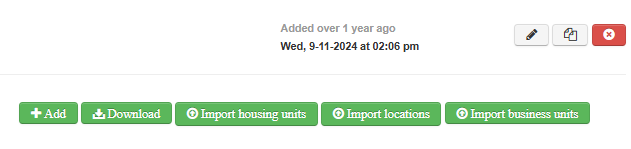
- Select your recently completed .csv file after clicking "Choose File"
- Click "Upload"
- A green bar will appear with a link to check progress

- Click the link and you will be taken to status screen similar to this
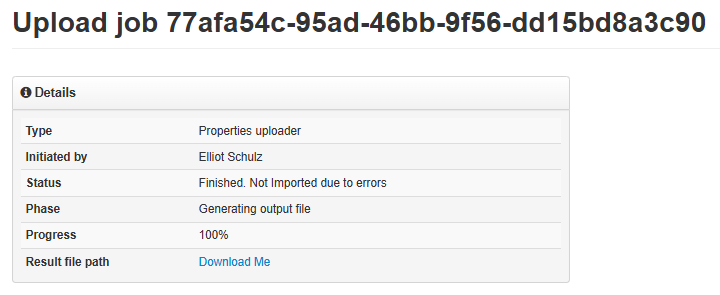
- If the status shows "Not Imported due to errors" click "Download me" by "Result file path"
- The resulting excel sheet will show any errors on the upload
- Typically errors are due to address format or standardization, the system typically provides the standardized versions
- If the system will not accept an address and has no suggestion as to what it should be, proceed to USPS site and search for a valid address to use
- If address is still not accepted, consider marking "Y" under Skip Verification
- The resulting excel sheet will show any errors on the upload
- If the status shows "Not Imported due to errors" click "Download me" by "Result file path"
-
-
- After correcting the errors, retry the download as many times as needed to clear the errors
- If you are still unsuccessful in downloading, slack #product-updates with the issue(s) along with steps you have taken to resolve
- After correcting the errors, retry the download as many times as needed to clear the errors
-
- Once you get a screen confirming upload, return to the customer page and confirm locations were added as desired
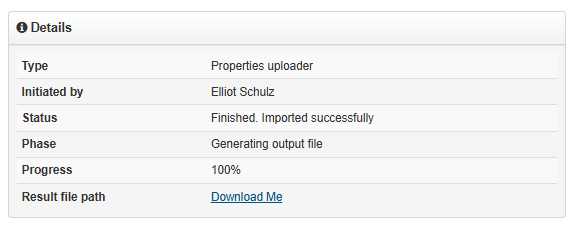
- Confirm that all locations are geocoded with latitude and longitude added
- Geocoding is necessary for location based vendors (Sherwin Williams) to function
- If these fields are empty, use a GPS Converter to obtain the proper coordinates
- Confirm that all locations are geocoded with latitude and longitude added