- Business Units can be loaded via .csv file on the backend
- If a customer is requesting addition of more than 5 business units, this feature is the most efficient tool, if less than 5 manual creation (see Expense Classification) is the best use of time
- Start by downloading a clean copy of the template
- Use an existing data request form to fill in the template
- If no form exists, send a new one to customer or request a spreadsheet of locations they would like added
- Fill in all fields
- Location ID
- Found on the backend on the location page
- If you are executing this upload directly after a location upload, maintain the order from the location upload
- Location upload generate the ids sequentially based on upload order, so maintaining order for this upload will allow for easier matching of the location id and business unit
- Found on the backend on the location page
- Expense Type
- Must link to a customers existing chart of account
- Ex. Operating, Capital, Homes
- Must link to a customers existing chart of account
- Business Unit
- Customer provided business unit or short code to identify the billing entity
- Location ID
- Once complete, download a copy of the sheet as a .csv file
- Proceed to the correct customer page
- Once selected, click "Locations" from the left hand navigation bar
- In the upper right corner select "Import business units"
- Select your recently completed .csv file after clicking "Choose File"
- Click "Upload"
- A green bar will appear with a link to check progress

- Click the link and you will be taken to status screen similar to this
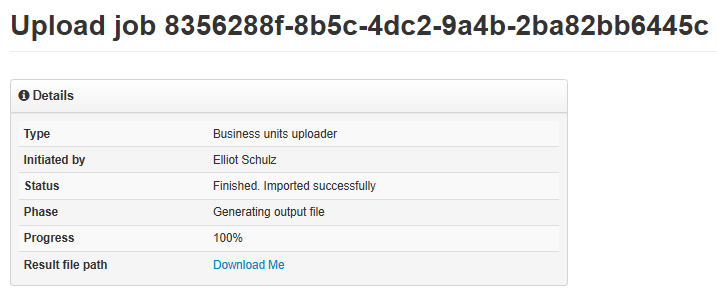
- If the status shows "Not Imported due to errors" click "Download me" by "Result file path"
- The resulting excel sheet will show any errors on the upload
- Typical errors are location ids not registered to the specific customer or unsupported expense type
- After correcting the errors, retry the download as many times as needed to clear the errors
- If you are still unsuccessful in downloading, slack #product-updates with the issue(s) along with steps you have taken to resolve
- The resulting excel sheet will show any errors on the upload
- Once you get a screen confirming upload, return to the customer page and confirm locations were added as desired
- Return to the customer page and spot check selected location to confirm accuracy
