- Housing Units or Lots can be loaded via .csv file on the backend
- If a customer is requesting addition of more than 5 housing units, this feature is the most efficient tool, if less than 5 manual creation (see Expense Classification) is the best use of time
- Start by downloading a clean copy of the template
- Obtain a list of housing units from the customer sorted by location name
- Transfer the location names and housing units to the template so the names are in column A (Location_ID) and the housing units are in column B (Number)
- Once all information is transferred sort by Location_ID so all location are in order
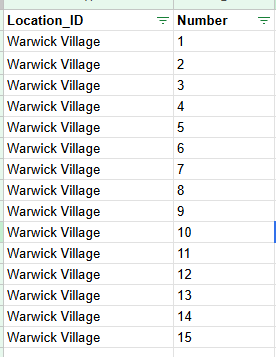
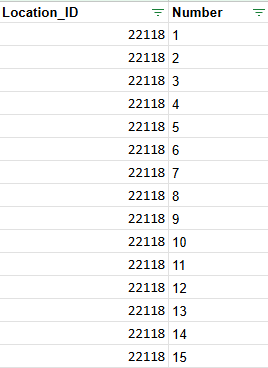
- Replace the name of the location with the location ID
- To find these ids proceed to the locations page
- Select the customer you are uploading for and click "Search"
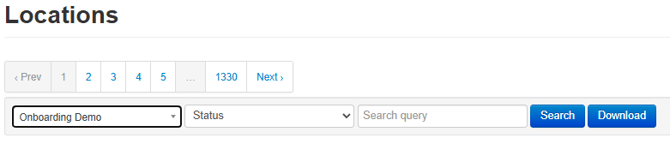
- Download the results
- Open the downloaded sheet and then sort by "Location Title"
- This will put the required locations id in roughly the same order as your upload file
- Once all names have been replaced by their corresponding IDs, download the sheet as a .csv
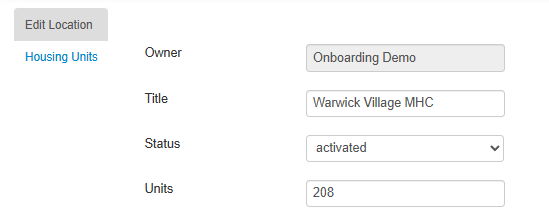
- Return to the locations page and click the customer name under "Owner" to be linked to the customer specific page
- Click "Locations" on the left hand navigation bar
- Click "Import housing units" in the upper right corner
- Select the .csv you downloaded after clicking "Choose File"
- Click "Save"
- Unlike other uploads, there is no status screen or confirmation of the upload
- To confirm the upload completed return to the locations page and locate a property you uploaded to
- Click the property name to go to the location specific page
- Click "Edit" in the upper right corner
- Click "Housing Units" in the upper left corner
- The resulting screen shout display all uploaded housing units
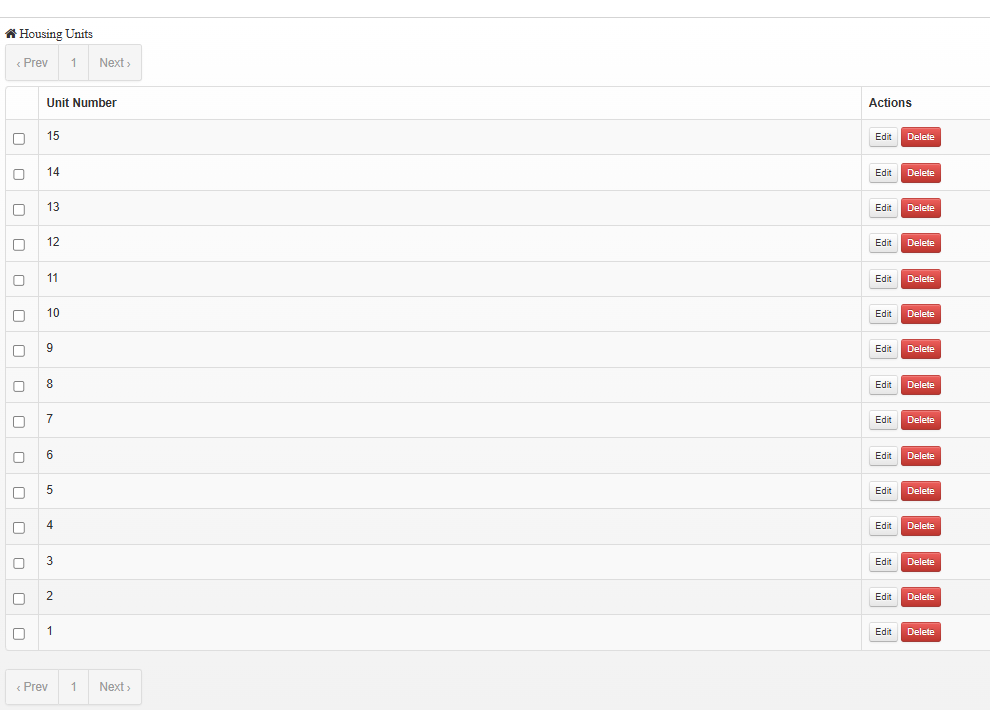
- Once uploaded housing units can only be edited or deleted via this screen
- Editing
- Click "Edit" and adjust as needed
- Click "Update" when done
- After updating you will be returned to the location edit screen and need to click "Housing Units" again to make changes (I know, terrible)
- Deleting
- Select all units you wish delete by checking the box in the left hand column
- Click "Delete Selected"
- After deleting you will be returned to the location edit screen and need to click "Housing Units" again to make changes
- If there enough housing units to require multiple pages, you will have to repeat the process for each page of units
- There is no select all button so each unit will have to be checked one by one (I know, terrible)
- Manually Adding
- Click "Manage" on the housing units page
- Enter the number and click "Create"
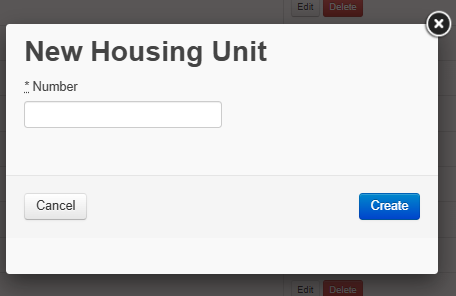
- After adding you will be returned to the location edit screen and need to click "Housing Units" again to make changes (I know, terrible)
- Editing