- If there is an active, enabled Rent Manager (RM) integration, it's possible to pull selected information via Partner Web Access
- This information can be used to support building out the customer's account
- Proceed to RM partner API partner access by entering the company code at the front of this URL https://”companycode”.api.rentmanager.com/Help/TestClient
- To locate the company code see “Creating an Integration” on the Internal RentManager Guide
- Ex. for Homestead Communiites https://hsc.api.rentmanager.com/Help/TestClient
- At the login screen click “Partner Login”
- Enter the “Partner Token” listed below and click “Partner Log In”
- 4221474a-db3f-4275-aa6b-5626190385a7
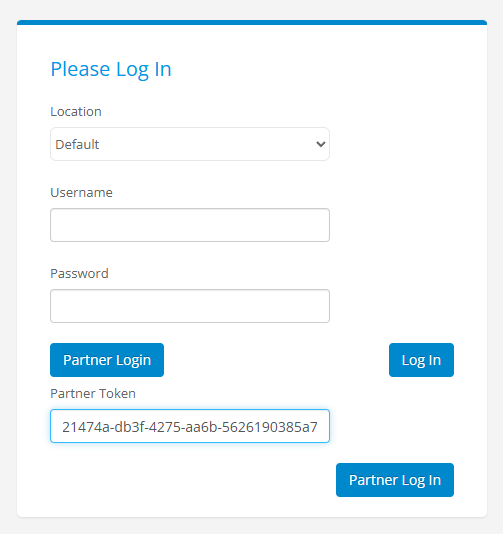
- 4221474a-db3f-4275-aa6b-5626190385a7
- We have finite IP addresses to log into this service for, so if login is unsuccessful contact “Product Updates” in slack and ask for assistance.
- One way of accessing this is to get access to the Identity VPN. That connects you to the internet through the PP home office. You can login through the office - our IP address there has permission. (You can also login if you happen to be in the office. But if you’re remote, you need to be on the VPN.)
- Don’t worry if the above paragraph seems like gobbledygook. When you post to “Product-updates,” just let them know that you need access to the home-office VPN.
- Click “Partner Authentication” tab and enter the same token listed above
- This will change the “Authenticated As” status from “Unauthenticated” to “Partner”
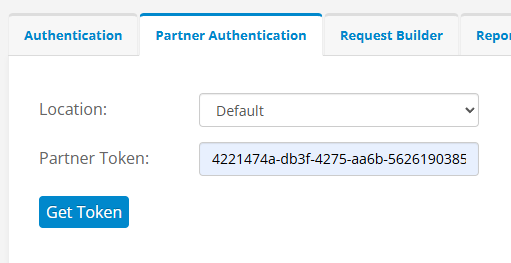
- Once the above is completed, you will be automatically moved to the “Request Builder” Tab
- To pull the full list of locations follow these steps
- Entity: Select “Properties”
- Click “Advanced Options”
- Under “Embed Options” select “Addresses”
- Click “Send”
- If successful you will see a message that says “OK” next to the “Send” button
- Below there will be a JSON output file, click the blue copy button (two sheets of paper) above the file.
- Proceed to this JSON converter and paster (ctrl + v) into the window that says “Paster your JSON text here”
- Click “Download CSV” once the conversion is completed
- To pull the full list of GL codes (Expense Accounts) follow these steps
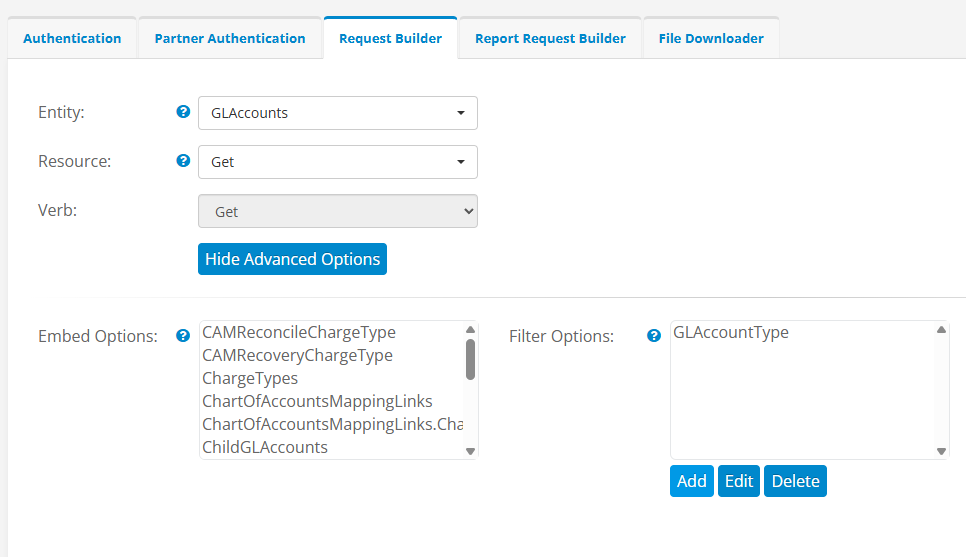
- Entity: Select “GLAccounts”
- Click: “Advanced Options”
- Under “Filter Options” click “Add”
- Filter Field: Select “GLAccountType”
- Operation: Select “EqualTo”
- Value: Enter “Expense”
- Click Save
- Click “Send”
- If successful you will see a message that says “OK” next to the “Send” button
- Below there will be a JSON output file, click the blue copy button (two sheets of paper) above the file.
- Proceed to this JSON converter and paster (ctrl + v) into the window that says “Paster your JSON text here”
- Click “Download CSV” once the conversion is completed
- To pull the lot designation (housing units) follow these steps
- Entity: Select “Properties”
- Click “Advanced Options”
- Under “Embed Options” select “Units”
- Click “Send”
- If successful you will see a message that says “OK” next to the “Send” button
- Below there will be a JSON output file, click the blue copy button (two sheets of paper) above the file.
- Proceed to this JSON converter and paster (ctrl + v) into the window that says “Paste your JSON text here”
- The output for the lot designation is generally larger than others. The converter used has a maximum file size of 1.0MB
- If the output is too large you will need to convert with this alternate converter that allows for larger size.