- Definitions
- Refund: A reversal of a charge placed on a customer bank or credit card that returns funds collected on an order.
- Credit: A reversal of an invoice generate by an order. Credits can be applied to an outstanding customer balance at the discretion of that customer. Credits can only be issued to a customer that is set up on terms.
- Golden Rule
- No refund or credit should be processed unless a vendor has confirmed in writing that an order is cancelled. If a vendor invoice is present, a credit memo must be recorded prior to issuing the customer credit or refund.
- Refund and Credit causes
- Customer returns
- Damaged goods
- Out of stock/backorders with no substitution
- Customer cancellations
- Service failures
- Issuing credits and refunds
- Credits and refunds are entered via the same process, any minor differences will be noted
- Proceed to the backend order page
- Locate the order that needs the refund or credit and click the order id
- The "Transactions" section will show if the reversal will be a credit or refund
- Refunds will display a transaction id, show "Capture" under type, list the payment method, and have a link marked "Refund"

- Credits will display the original invoice number, customer name, list "Customer Invoice" as payment method, and have a link marked "apply credit"
- Refunds will display a transaction id, show "Capture" under type, list the payment method, and have a link marked "Refund"
- After satisfying the Golden Rule click either "Refund" or "apply credit"
- The following screen will show the line item details for all items showing base price, price with PP fees, price with tax, any payment fees, and a total
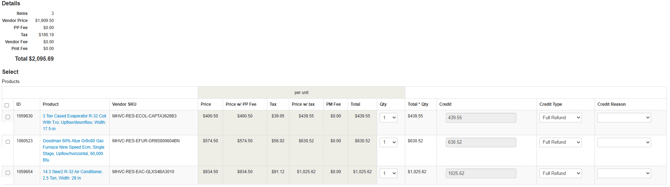
- Select all line items that require a credit or refund
- Adjust "Qty" to match what was credited by vendor
- Select type
- Full Refund - full amount including taxes and fees to be refunded
- Goodwill - Partial refund usually due to service failure or price fluctuations
- Restocking Fees - If vendor recouped part of the credit for restocking purposes
- Select Reason
- Backordered - Item out of stock
- Buyer’s Remorse - Not what the customer wanted or expected
- Data Inaccurate - Item was not listed correctly or did not align with the item description
- Defective - Item not working
- Discontinued - Item no longer available from the vendor
- Excess Item - Additional units were sent due to a vendor error
- Goodwill - Utilized for partial refunds related to service failure or requested price match from customer. When using this reason, adjust “Refund Type” to Goodwill as well
- Missed Delivery Date - Item not received within the confirmed ETA
- Wrong Item - Vendor sent the wrong item number in error
- Review all selections to ensure the projected refund or credit aligns with what was received from the vendor
- Add a short note as to the reason for the credit or refund
- Include any HubSpot ticket id so any agent can review full cirumstances
- Any note added to a credit will not record on the order page
- Copy the note after entry and then paste as an order note after the credit is issued.
- Click "Apply"
- If you are taken to an error screen instead of back to the order, contact Carla Byers for further assistance
-1.png?width=670&height=314&name=image%20(47)-1.png)
- If you are taken to an error screen instead of back to the order, contact Carla Byers for further assistance
- The resulting credit or refund will now be listed under "Transactions"


- Refunds along with any notes added under "Reason" will be listed as an order note
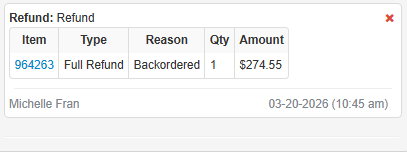
- On credits, remember to add the reason as an order note
- Users will received a notification of the refund/credit when issued
- A physical credit memo is sent to a customer distribution list set on the customer page
- Click "Edit"
- Any email listed in "Invoices sent to" will receive the memo
- You can also click the credit memo number to go to a page showing the line items involved in the credit
- You can click "Resend" on this page to send out another copy of the memo to everyone on their distribution list
- A physical credit memo is sent to a customer distribution list set on the customer page