- Sample Ticket
- Customer Escalation Point: Brittany Diedrich - bdiedrich@eqr.com
- Equity Residential (EQR) is a customer setup to purchase Goodman products. Orders are submitted by their staff via OpsTechnology Merchant (OpsTech)
- Start by reviewing the ticket information
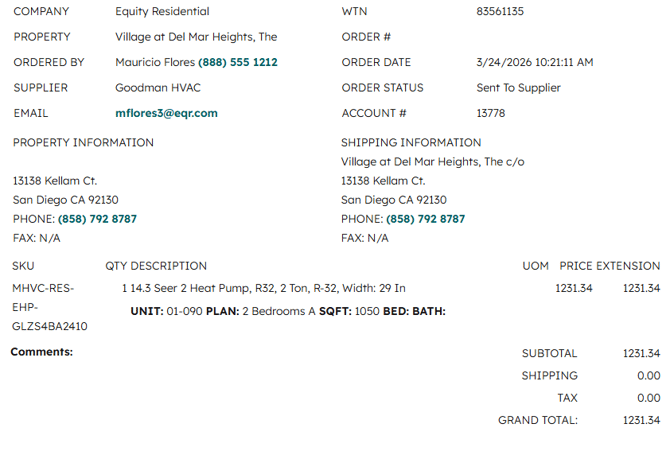
- Open a window to the front end and begin a shadow session as the EQR user
- Users correspond to Property on the ticket
- User for this example is The Village at Del Mar Heights
- Search for the requested items by using the last section of the SKU listed on the ticket
- In this example "Glzs4BA2410"
- You should receive a single result under the the vendor "Goodman - Equity Residential"
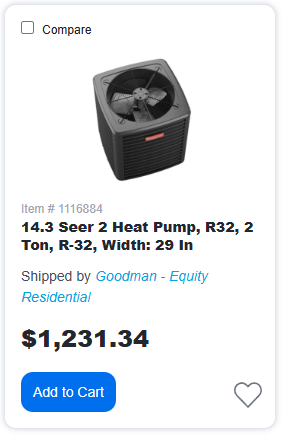
- Confirm the price on the item matches what was listed on the ticket
- If there is discrepancy notify Carla Byers and Lizzie Wellnitz
- On the item page confirm the SKU matches what was on the ticket

- Repeat steps for all items on the ticket before proceeding to checkout
- Confirm the shipping address matches the information from the ticket
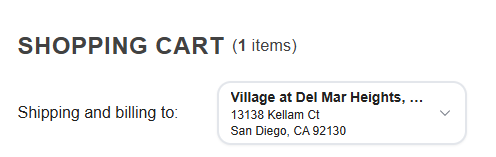
- You will see a shipping fee of $140 called out on the cart summary. This fee applies to all orders from this vendor, and includes both delivery and lift gate. Any orders over 5 units, will receive waived shipping. If your order is over 5 units, please process as normal, but note this on our EQR 5+ Tracker for finance to waive after invoice.
- Confirm the total cost is correct with the ticket price + the shipping fee before clicking "Proceed to Checkout"
- Add the work order number as an internal note and External reference
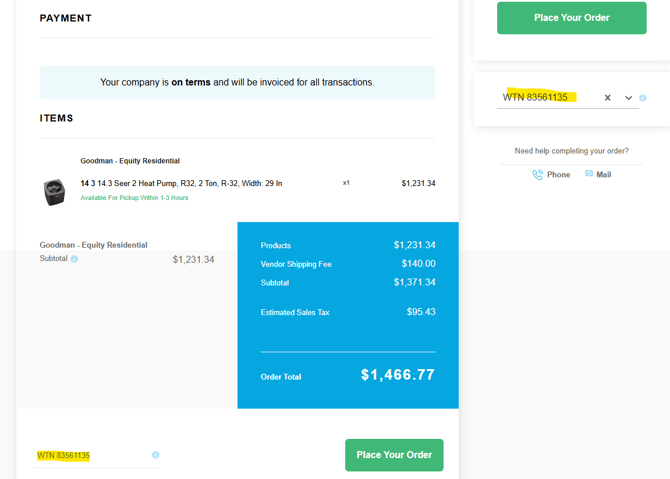
- These additions will link the work order to the customer and record on the backend as well
- Click "Place Your Order"
- Record the order number
- Add the order number as a note within your Hubspot ticket
- Access Ops Tech
- Information is in 1Pass
- Locate the work order by looking under "Orders" and "New Orders"
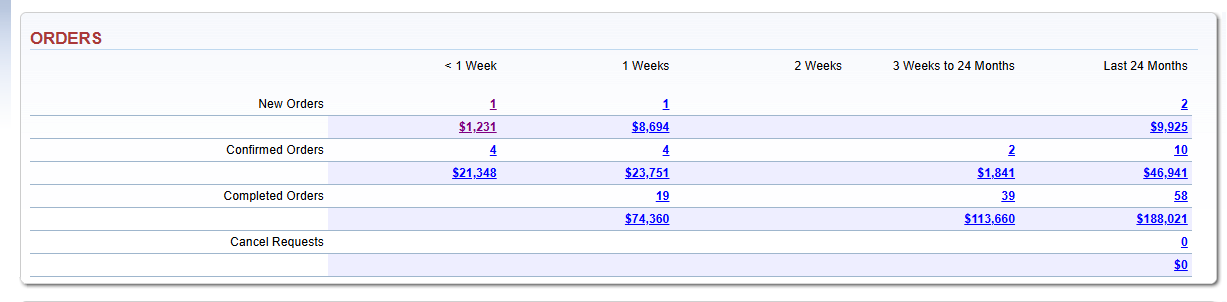
- Click the number or total by "New Orders"
- Locate and click on the work order
- On the specific work order page add the Order/PO number to the "Order #" field
- Click "Confirm" to process the order
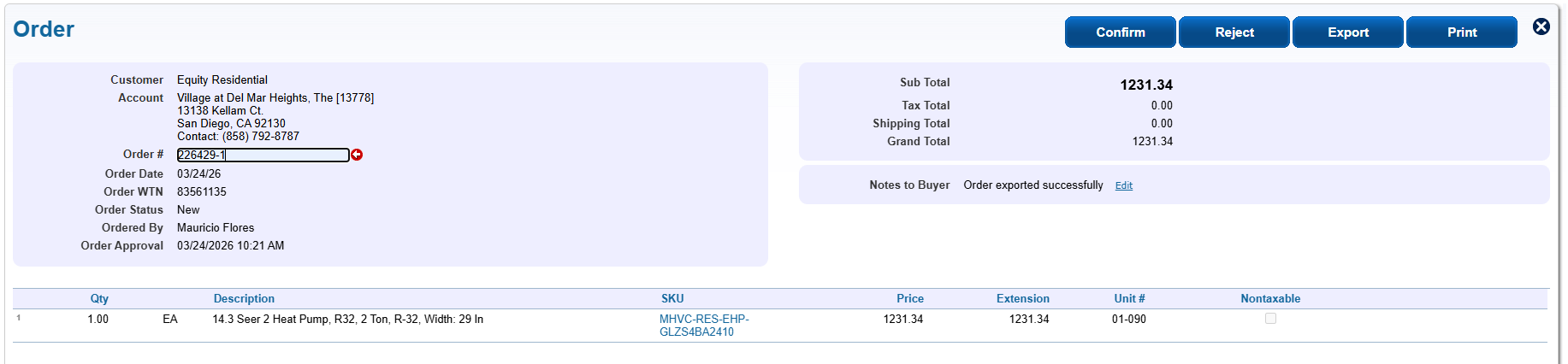
- Return to the HubSpot Ticket and confirm the order to the contact listed in "Ordered by" using the email address listed
- Canned Response (EQR Order Confirmation Snippet):
Hello,
We are confirming your order ______ has been received and processed with the vendor with an ETA of 3-5 business days.
- Canned Response (EQR Order Confirmation Snippet):
- If the agent receives a stock issue for an EQR order, use the following example ticket to contact the customer and vendor to resolve.
Example Ticket