- When taking a BDR ticket or having one assigned to you directly, start by determining if the requested product is an active product on the site or available via a punchout vendor
- There are a number of instances where BDRs can be cancelled immediately. To do so access the specific BDR page under "Details" and move the status to cancelled

- Below are the circumstances you can cancel a BDR and the language that should be used in the cancellation field
- Amazon Punchout: Please note that Purchasing Platform is now partnering with Amazon Business, offering a direct punchout solution from our platform! This feature allows customers to create orders on Amazon using Purchasing Platform. To initiate the process, please click on the Amazon Punchout tile located on your homepage. This will direct you to the complete Lowes catalog. Once you are there, select “Shop the Lowes Catalog” to begin adding items to your cart. Should you have any inquiries, please do not hesitate to contact us at memberservices@purchasingplatform.com.
- Lowes Punchout: Please note that Purchasing Platform is now partnering with Lowes Pro Supply, offering a direct punchout solution from our platform! This feature allows customers to create orders on Lowes using Purchasing Platform. To initiate the process, please click on the Lowes Pro Punchout tile located on your homepage. This will direct you to the complete Lowes catalog. Once you are there, select “Shop the Lowes Catalog” to begin adding items to your cart. Should you have any inquiries, please do not hesitate to contact us at memberservices@purchasingplatform.com.
- Wayfair Punchout: Please note that Purchasing Platform is now partnering with Wayfair, offering a direct punchout solution from our platform! This feature allows customers to create orders on Wayfair using Purchasing Platform. To initiate the process, please click on the Wayfair tile located on your homepage. This will direct you to the complete Wayfair catalog. Once you are there, you may begin adding items to your cart. Should you have any inquiries, please do not hesitate to contact us at memberservices@purchasingplatform.com.
- Active Catalog: All requested item(s) are available in our Active catalog with hosted pricing and do not require a quote. Please see the direct link below. You may add to your cart and order at any time.
- Vendor Not Supported: The requested vendor is not part of our preferred vendor network and we are unable to provide a quote from them as we cannot guarantee the quality of the product or the safety and efficiency of shipping. We do have several options available in our marketplace that we would like to offer as comparable replacements for their convenience.
- Item is Discontinued: Regarding your quote _____, the requested item has been discontinued with the vendor. Regretfully, we are unable to provide a quote for the requested item(s) at this time and encourage you to peruse our curated product catalog for a suitable alternative.
- Outside the scope of categories: Hello! Thank you for submitting this quote request with Purchasing Platform. The requested item is outside of the scope of available product categories. Regretfully, we are unable to provide a quote for the requested item at this time. If you have any questions, please contact memberservices@purchasingplatform.com and a member of our team will be happy to assist.
- Some BDRs will require additional information from the customer, below are the most common cases. Below are cases where additional information is needed, communicate this need via the corresponding Hubspot ticket
- More Information Needed: Please be advised, we will need further information in order to fulfill this request. Please provide any identifying specs (direct URL link to the item/Supplier URL, Model/Item#, Manufacturer part#, etc).
- Skirting Quote Request: Hello, Can you please quote the following for delivery to (Property Name & Address)? (Product Name). #(Item SKU/Part Number). Quantity __.
- Playground Quote Request: Regarding your quote request #_____, please complete the attached playground intake forms (3) with all applicable information and return them so I may contact the vendor. Please advise. *Include proper intake questionnaire for Amenities, Dogs Parks, and/or Playgrounds
- Service based BDRs (Let's Pave, Roto-Rooter, Terminix, etc.) require forwarding to their corresponding vendor contact. Forward all request details within Hubspot
- Roto-Rooter - Commercial Team - sales@rrscnatacct.com
- Let’s Pave - Kevin Flannery Kflannery - @letspave.com
- Terminix - Tarra Meteye - purchasingplatform@rentokil-terminix.com
- Elite Construction - Erica Reed - erica.reed@ecs-brands.com
- HVAC BDRs
- There are number of Goodman (specifically Daikin) products that are marked as "Request for Quote" (RFQ)
- Access the "Original Request" tab on the BDR to confirm the product information
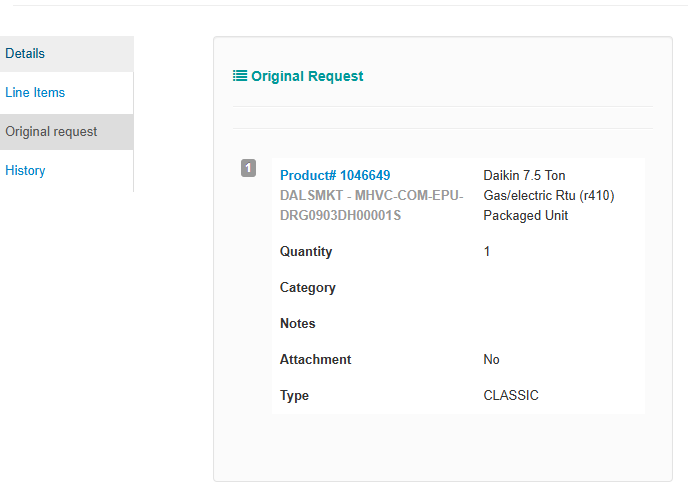
- Contact Motili Customer Service via email or utilize the chat function to confirm availability and pricing
- Confirm the customer's catalog pricing via the vendor grid on the customer page
- Locate the correct product, cancel the BDR with "Active Catalog" response and share the product link with the customer
- There are a number of instances where BDRs can be cancelled immediately. To do so access the specific BDR page under "Details" and move the status to cancelled
- Converting a Vendor Quote to a BDR
- Determine if the quoted product exists in our catalog under that vendor
- If the product exists click "Add Line Item" while on the "Line Item" tab
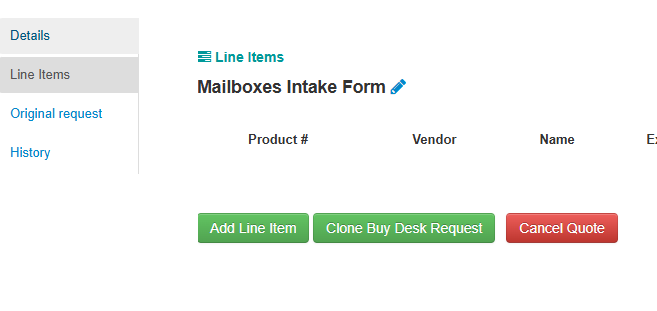
- Utilize the search field to locate the existing product
- Search by either vendor item number or PP item number
- PP item number is preferred as the vendor part number could yield multiple variants
- When searching by PP item item start with "id: " plus the internal item number to yield proper results
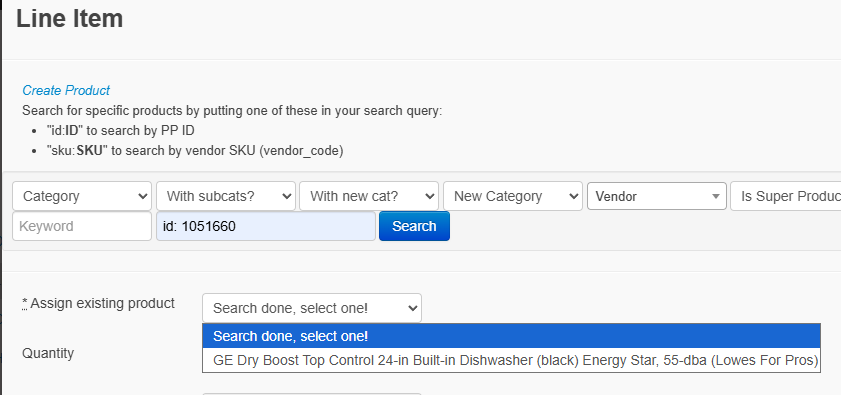
- Select the correct item
- Search by either vendor item number or PP item number
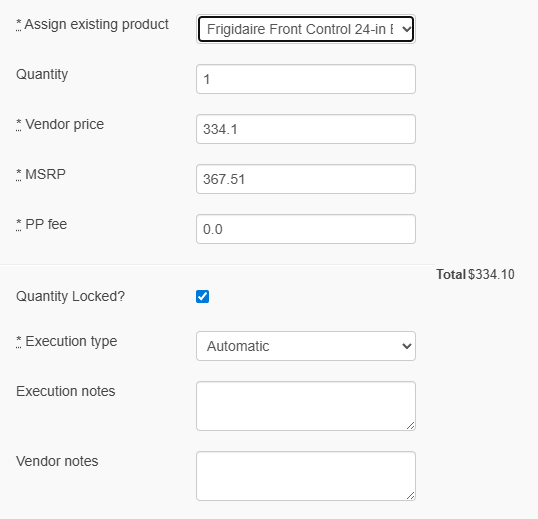
- Set the pricing confirmed from the vendor according to the type of quote PP facing or customer facing
- Customer Facing
- Customer facing quotes can be or already shared with the customer and include any PP fees
- If fees are included with the quote (baked in) they must be backed out at this BDR page
- Once confirmed divide the vendor quote by the PP fee percentage plus 1
- Ex. 15% built in divide the total by 1.15
- This total will be the Vendor Price and the percentage will be the PP Fees
- Once confirmed divide the vendor quote by the PP fee percentage plus 1
- MSRP is no longer visible to the customer but must be entered as higher than the total cost
- Ex. Vendor price is $100 PP fee is 15%, enter a value higher than $115
- Vendors with customer facing quotes & built in percentages
- Let's Pave (2.5%)
- Terminix (15%)
- Elite Construction (3%)
- PP Facing Quotes are not shared with the customer and any fees can be expressed purely as PP fees
- Quotes typically don't involve fees, so any markup can be added as a simple PP fee percentage
- Vendors with PP facing quotes and the standard percentages to add
- Roto-Rooter (15%)
- Home Depot Pro (10%)
- Noah's Playgrounds (5%)
- Customer Facing
- Utilize the search field to locate the existing product
- If the product doesn't exist, create the item in the catalog
- See item creation guide (pending)
- Set the Execution Type
- Execution is how the vendor receives the resulting purchase order generated at the time of order
- Automatic
- Automatic executions will follow the PO path set on the vendor page integration under Purchase Order
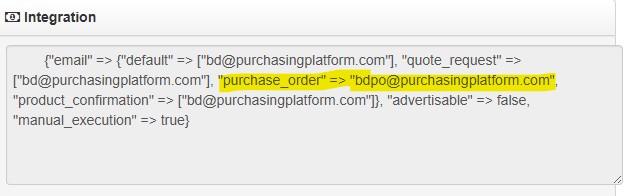
- Integration files with a PP domain under purchase orders will route the PO through HubSpot for manual execution
- Vendors with integration will route the resulting PO through their system
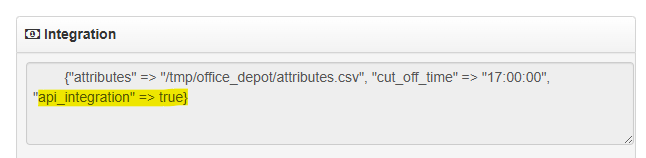
- Automatic executions will follow the PO path set on the vendor page integration under Purchase Order
- Intercept
- Intercept will ignore all vendor integrations and send a manual execution PO to a PP email address
- Utilize intercept in special circumstances when you want to control the path of the PO
- Ex. Charge correct BDRs should always be set as intercept
- Automatic
- Execution is how the vendor receives the resulting purchase order generated at the time of order
- Vendor Notes
- These notes appear directly on the PO
- Whenever possible include the vendor's quote or reference number in this field to assist in PO processing
- Once all items are added and pricing confirmed return to "Details" tab and set status as "Ready"
- Customer will receive an automatic notification that the quote is ready for review and potential check out