- This guide will go over how to edit the key account objects (addresses, emails, and phone numbers). This can be executed by an agent via the PP backend
- Adjusting Email, Phone Numbers, and User Names
- STOP! Adjusting an email address will change the login for a user. Make sure the user is aware when this is done.
- Locate the user via search on the user page
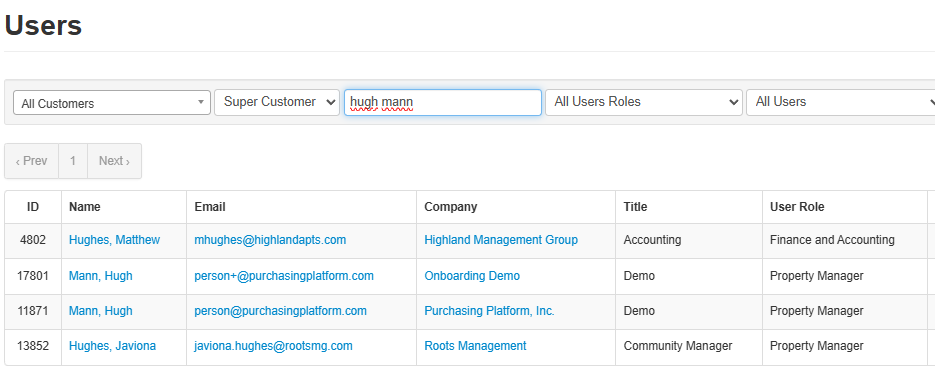
- Alternatively the user can be found indirectly via the customer page or location page
- On the customer page click the "User" tab to see full list of associated users and locate the account in question
- On the location page, find the correct locations and locate via "Users" on the specific location page
- Click the correct profile
- In the upper right, click "Actions" then "Edit"
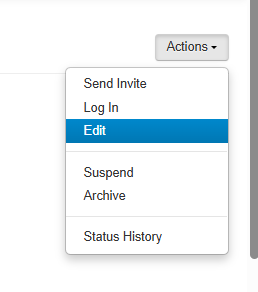
- You can now adjust any of the listed information or options for this user
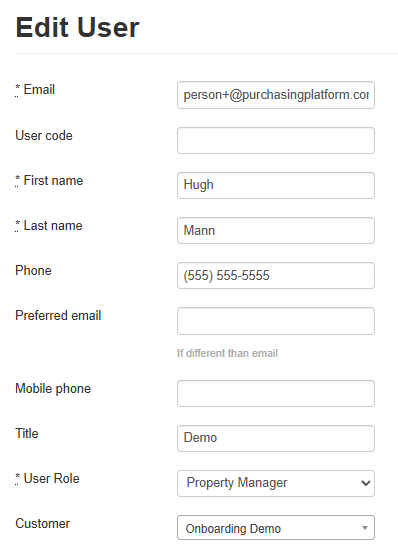
- Starred fields must be completed prior to updating the record
- "User Role" is not added when using self-registration and will need to be added if adjusting a self-registration
- Use best judgment when selecting from the drop down
- When in doubt use "Asset Management, Operations..." as a catchall
- "User Role" is not added when using self-registration and will need to be added if adjusting a self-registration
- Once complete click "Update User"
- On some browser user automatic form completion, said browser will try and populate a spending limit and/or password automatically, make sure these are deleted prior to update to avoid errors
- Starred fields must be completed prior to updating the record
- Alternatively the user can be found indirectly via the customer page or location page
- Adjusting a Property Address
- Locate the correct address via search on the location page
- When located, select the correct location to edit
- Custom locations are no searchable on the backend, any edits to custom addresses must be done via the frontend
- Click "Edit" in the upper right corner'
- Adjust the address as needed
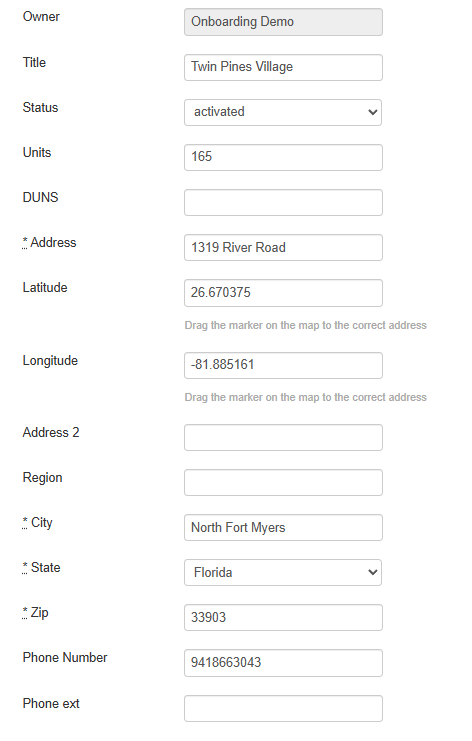
- Our system uses USPS address verification to standardize addresses
- An error will display if the address is not verifiable, typically with a suggestion as to what it should be

- Copy and paste the suggestion if it lines up with the request
- If you receive an error with no suggestions, use the USPS website to locate the standardized version
- If no address exists, consult the customer for direction
- A direct upload is possible here to bypass verification, but never recommended
- An error will display if the address is not verifiable, typically with a suggestion as to what it should be
- Before clicking "Update Location" ensure the Latitude and Longitude fields are populated
- This geocoding is necessary for location based vendors (Sherwin Williams) to function
- If these fields are empty, use a GPS Converter to obtain the proper coordinates
- Our system uses USPS address verification to standardize addresses
- Click "Update Location" when complete