- Before you begin confirm the following information
- Executive Stakeholder: Confirm the best name and email information at the new customer who should become the account owner
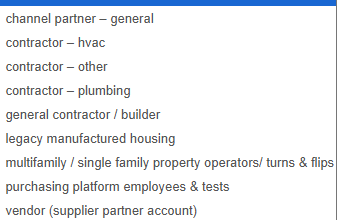
- Customer Segment
- Select the segment that best matches the new customer's type of business
- Proceed to customer page
- Click "New Customer" in upper right corner
- Fill in the following required fields
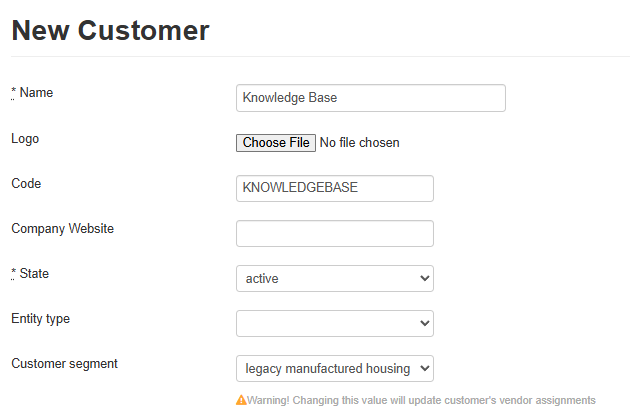
- If field not included on list, it can be left blank
- Name
- Company name that will become the customer name
- Code
- Internal code for reporting
- Use all caps
- No spaces
- Can use abbreviations for common terms
- Ex. Roots Management = ROOTSMG
- State
- Keep as "Active"
- Customer Segment
- Select the best fit based on company's information or website
- Require unit/lot number during expense classification
- This feature compels users to select a lot designation during expense classification
- In order to function, lots/units must be manually added or automatically linked via Rent Manager (RM) integration
- See Quick Reference Guide for more info under “Lot Designation”
- For RM specifics see RM Onboarding Article
- Once enabled, you'll need to indicate which expense types require lot designation
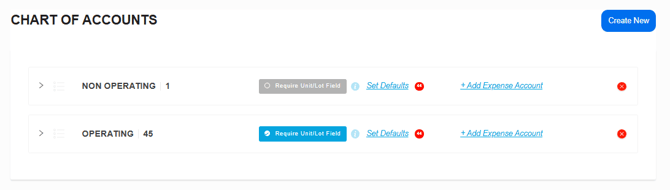
- Shadow as a customer admin on the front end and proceed to the CoA page
- Toggle "Require Unit/Lot Field" for all charts of accounts requested by customer to require lot
- Override Default Expensing
- Toggling this feature wipes out any and all default expense classification. This will require the any users to manually code all line items prior to checkout
- Requires PO notes at Checkout
- Toggling this feature requires users to enter a note or PO reference in the “Notes, PO/Project #, etc” field on every line item prior to completing checkout.
- Payment Terms
- Not to be granted unless Purchasing Platform finance team has signed off
- Start the conversation with Susie Luong if customer has requested
- Not to be granted unless Purchasing Platform finance team has signed off
- Membership Fees
- Set only if collecting fees
- If collecting fees set as "Premier"
- Exempt from membership fees
- Currently we are shifting away from a membership model and very few new customers will be assessed monthly fees
- Ensure that “Exempt from membership fees” is toggled if not assessing fees
- Super Customer
- If new customer should be nested, select correct customer via the dropdown
- Owner
- Fill in information gathered from contact or executive stakeholder
- Email, First Name, Last Name, and Owner Phone are only required fields
- Fill in information gathered from contact or executive stakeholder
- Create Freshsales Account
-
Former CRM, mark as "Customer is already on Freshsales"
-
- Click "Create Customer"
- If any required fields missing, you will be prompted to fill in
- If successful, you will be taken to the the new customer's specific page
- The account owner is not automatically activated
- See article on "Activating Users" for instructions on activating