- Example Ticket (Cause)
- Example Ticket (Change Order BDR)
- Example Ticket (PO/Manual Execution)
- Change orders are used to balance an order that has a significant increase in vendor costs through both expected and unexpected circumstances
- Examples of expected circumstances can include, converting a pickup to a delivery (shipping costs) or changes in project scope (service orders)
- Examples of unexpected circumstances include stock issues (substitute is higher cost) or vendor price fluctuations (catalog price outdated)
- Change orders can be most common for Motili orders due to shifting inventory levels
- When to use Change Orders
- Change orders should be used sparingly and avoided where possible. They add levels of complication for customers, vendors, and internal accounting procedures
- Where possible, the original order should be cancelled, refunded, and re-processed with the full corrected price
- If the order is already partially processed and invoiced by the affected vendor, change orders should be used. Cancellation of a partial will negatively impact both vendor and PP.
- In some cases users will request the difference in price be processed separately. This saves time and money as it can take several days for the refund amount to process. Reprocessing and recharging the amount creates a credit of cash issue for that user that will negatively impact the user's operational efficiency
- Processing a change order
- Confirm the price adjustment with customer
- Also confirm the difference can be charged to the original order payment method
- Build a BDR for the user
- Check the user's customer page whitelabeling to confirm the BDR setting, Classic or Work Order
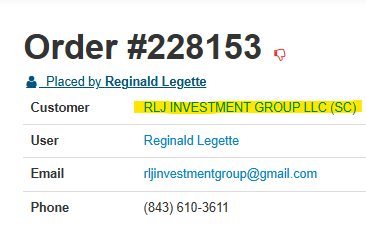
- Find the customer profile via the impacted order page on the backend by clicking on the customer name
- Once on customer profile click "Whitelabeling"
- Check status under "BDR Experience"
- If listed as "Work Order" click "Edit Whitelabeling" and adjust to "Classic" and click "Update Customer whitelabeling"
- If adjusted, remember to change back to the original setting after the BDR is processed
- Find the customer profile via the impacted order page on the backend by clicking on the customer name
- When assigning line items, use the best match for circumstances
- All vendors should have a shipping SKU
- If Motili related use " Motili Order Change" SKU for Motili or Goodman vendor assigned via their vendor matrix
- SKUs should have a $1 vendor cost by design, use the quantity to set the correct change order pricing

- After setting quantity, set "Execution Type" to "Intercept"
- THIS MUST BE DONE ON ALL CHANGE ORDERS
- Setting this will ensure the PO is not routed through the vendor's automated system causing additional confusion
- Add the following in Execution and Vendor notes fields
- Execution Notes - DO NOT EXECUTE - Charge correction for order xxxxxx (add original order number)
- Vendor Notes - Original order id xxxxxx (add original order number)
- Set the BDR as Ready
- Check the user's customer page whitelabeling to confirm the BDR setting, Classic or Work Order
- Process the BDR via a shadow session
- Shadow as the user
- Add the BDR quote to their cart
- Complete checkout with the payment method confirmed earlier by the user and record the order id
- If necessary shadow as the supervisor to approve the order to get it moved it to processing
- Use "Edit & Approve" button to be able to record a note to the effect of "Change order confirmed by user, approved by PP Admin"
- If necessary shadow as the supervisor to approve the order to get it moved it to processing
- Locate the resulting manual execution ticket with HubSpot
- Link the ticket to the original change order request ticket as well as both the change order ID and original order ID
- Access the backend and locate both the original and change orders
- Add notes on the original order page as to why the change order was processed
- Include the HubSpot ticket ID, change order BDR number, and change order id
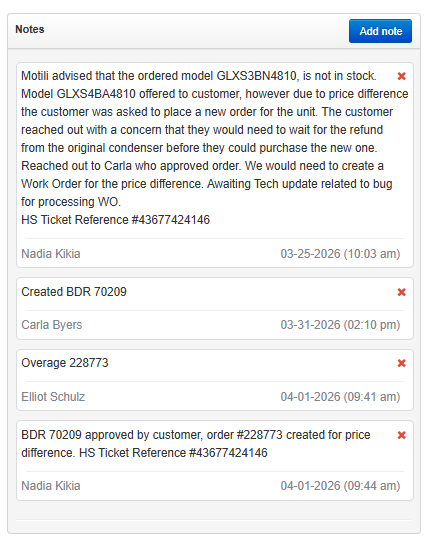
- Include the HubSpot ticket ID, change order BDR number, and change order id
- Access the change order page
- Add the original order ID as a note
- Set the order as delivered via "Edit Order" button in upper right
- Add notes on the original order page as to why the change order was processed
- Confirm the price adjustment with customer