- Assigning via the Backend
- The only way to assign a user to a location via the backend is via upload
- This is only efficient if assigning more than 10 new locations to a user(s)
- See Article on Uploads for more information
- Assigning via the Frontend
- Locations can be assigned in two different ways, via the user page or location page
- Only users with "Manage Company Settings" privilege can access the full list of users or locations in order to assign
- Via the Locations page
- Search for the correct location
- Click the the desired location
- Once in the specific location page, you can search for and assign users one by one
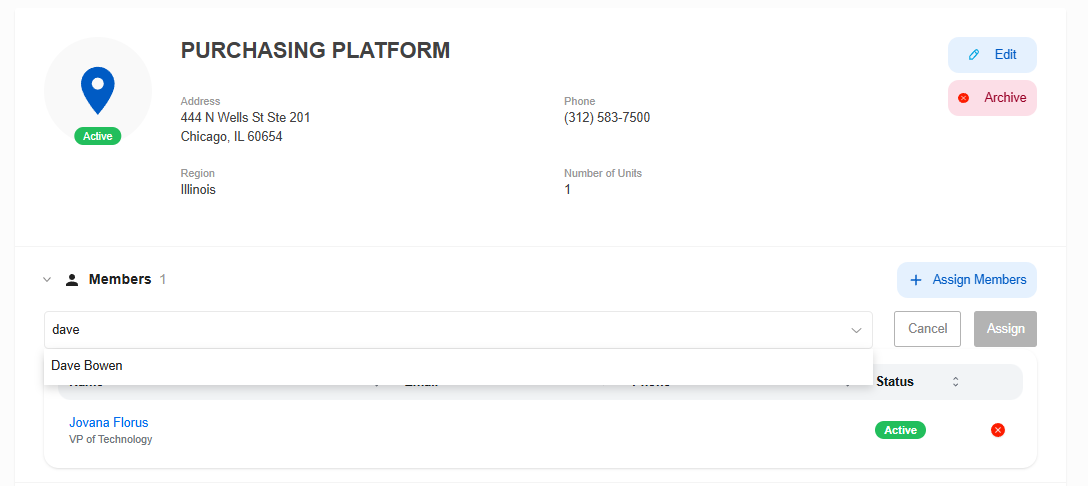
- You will see a message in the upper right corner saying “Member Assigned” and will now see the user within the list of assigned users
- Click assign for the desired users and repeat as needed
- Via the Members page
- Search for the correct user
- Click the desired users
- Once on the user's page click "Assign Locations"
- Multiple locations can be searched and assigned at once
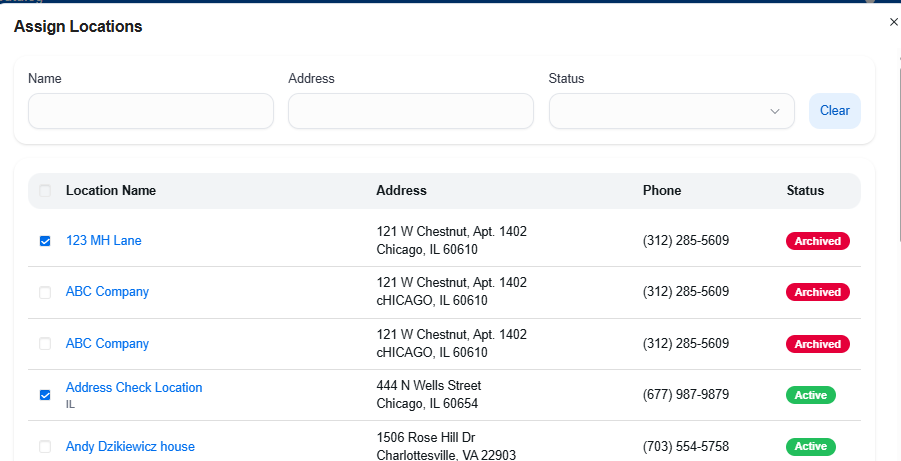
- Once all desired locations are selected click "Assign Locations"
- You will see a green popup in the upper right confirming the assignment
- All locations will now be listed under locations for this user
- Locations can be assigned in two different ways, via the user page or location page