- Approval workflows are a building block of Purchasing Platform for larger customers who request compliance and/or oversight of their orders. These workflows allow designated users to approve or decline orders
- Workflows can also be referred to as "Audit Trails"
- Workflows can range in size and complexity depending on the customer's need
- How to review workflows
- By Order
- Frontend
- Shadow as the account owner or user associated with the order and proceed to the order dashboard
- Search for, locate, and click the order
- Toggle the dropdown for “Audit Trail”
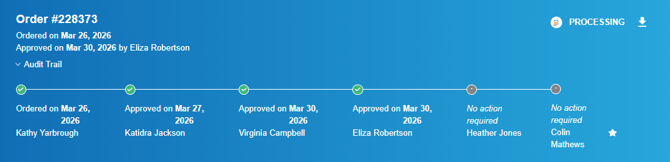
- This will display all approval steps and their current statuses
- Backend
- Proceed to the orders page
- Search for and locate the order
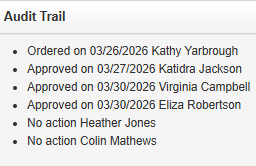
- The audit trail will be displayed beneath the Purchase Order and Invoice section
- Frontend
- By User
- Proceed to the user page
- Search for, locate, and click the desired user
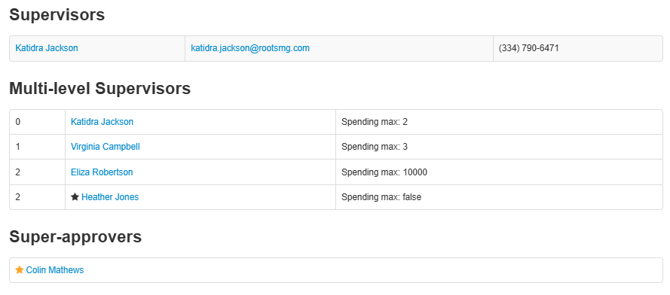
- The full approval workflow will be displayed under “Multi-Level Supervisor”
- Each level will be displayed along with the spend limit for each ascending user
- Super-approvers are indicated with a yellow star and have access to give full and final approval to any order at any time
- By Order
- How to Adjust Workflows
- Workflows can only be adjusted via the frontend by shadowing as a user on the account with admin (manage company settings) privilegs
- Start a shadow session as a customer account admin or owner (starred account) and navigate to the Members page
- Locate the desired member and click into their specific user page
- Workflows are built by assigning other users as either "Supervisors" or Direct Reports"
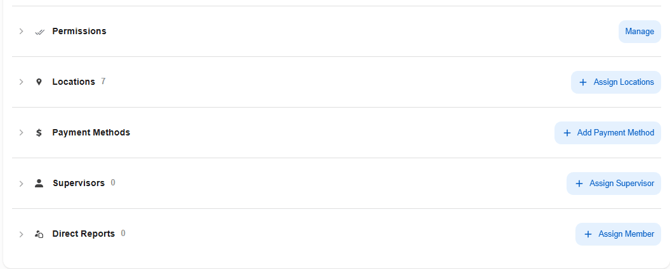
- Supervisors - Upstream approvers who will have the ability to approve orders under the following circumstances
- When orders exceed the assigned members spend limit
- If permission of “Non-corporate catalog purchases” is enabled and order includes any item not added to the customer’s corporate catalog
- Direct Reports - Downstream approvers this gives the selected user supervisor privileges like the ones above for any order placed by users assigned in this category
- Supervisors - Upstream approvers who will have the ability to approve orders under the following circumstances
- Best Practices
- Single Supervisor is king
- A single supervisor is better as it keeps the audit trail simple.
- Every assigned supervisor will receive a notification when an order needs approval. If there are multiple supervisors on an order they will all receive notification. If one supervisor approves the order, the other will not be aware and could easily duplicate efforts without realizing it.
- Multiple Supervisors are possible
- It is possible to have multiple supervisors for a user, but important to maintain a concise chain by having both assigned supervisors be direct reports under a single user (where applicable) in order to prevent a forked chain
- Supervisor on Vacation (Temporary Oversight)
- Locate the absent supervisor and the temporary supervisor member pages via the frontend
- Add all direct reports under the absent supervisor to the temporary supervisor
- When instructed or on the date of return, remove the same direct reports from the temporary supervisor
- Single Supervisor is king
- For further reading and examples review "Building and Maintaining Approval Chains"